概述
概述




使用 PowerShell 脚本轻松备份 ESXi 虚拟机
2026-07-03
VMware vSphere 在企业中被广泛使用,提供了一个强大的虚拟化平台,可充分利用物理服务器的硬件资源,其虚拟机监视器 ESXi 也广受用户好评。
当虚拟化技术突破传统IT环境的限制时,IT运维也面临着新的挑战。IT管理员是继续备份物理服务器,还是寻找一种新方案来备份ESXi虚拟机?
ESXi 虚拟机备份与主机备份对比
在物理服务器被虚拟化之前,IT 管理员只需使用传统方案对它们进行备份;但如今,为修复某个虚拟机而将整台服务器恢复原状,不利于灾难恢复,因为这可能会影响其他正常运行的虚拟机。
此外,由于 ESXi 是一种 1 型虚拟机监视器(即裸金属型),其上并未安装操作系统,因此传统的备份方案无法在其上部署备份代理,导致难以对虚拟化主机上的全部数据进行备份。部分 IT 管理员会 备份 ESXi 配置,但更多人认为这并无必要。
在虚拟环境中保护数据和业务连续性的最有效方法,仍然是对 ESXi 主机上的虚拟机进行备份。这样,在某台虚拟机发生故障时,IT 管理员可以单独恢复该虚拟机,而不会影响其他虚拟机的正常运行。
如何使用 PowerShell 脚本备份 ESXi 虚拟机?
要管理虚拟机,您可以在虚拟环境中部署 vCenter,并手动导出 ESXi 虚拟机作为数据备份。
部署 vCenter 后,您还可以运行 PowerShell 脚本来按计划备份虚拟机。
本节将指导您编写 3 个脚本:Starter.ps1、_Configuration.ps1 和 Backup-VM.ps1。完成后,您需要将它们放置在以下目录结构中:
│ Backup-VM.ps1
│ Starter.ps1
│
└─vCenter01
_Configuration.ps1
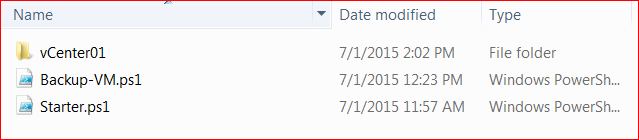
脚本功能说明:
Starter.ps1 - Invoked by task scheduler, in its path, it will scan all _Configuration.ps1 files, and launch Backup-VM.ps1 asynchronously.Backup-VM.ps1 - Owns a sole parameter called "-vCenterFolder", pointing to a directory of _Configuration.ps1._Configuration.ps1 - Configuration file, any number of it is ok, based on the contents, do different VM backup jobs on different vCenter servers.
脚本内容及说明:
Starter.ps1
# Enter directory of scriptSet-Location (Get-Item $MyInvocation.MyCommand.Definition).Directory# Scan all _Configuration.ps1 filesGet-ChildItem -Filter '_Configuration.ps1' -Recurse | %{ # Launch Backup-VM.ps1 and pass _Configuration.ps1's path in Start-Process -FilePath 'powershell.exe' -ArgumentList @('-File', 'Backup-VM.ps1', '-vCenterFolder', "`"$($_.DirectoryName)`"")}_Configuration.ps1
$Enable = $true# Below is a sample to backup VMs# VM - the VM name in vCenter# Host - VMHost name in vCenter# Datastore - Datastore name in vCenter in Host<#Sample:$Entries = @(@{VM = 'VMName01'; Host = 'TargetESXiServerName02'; Datastore = 'TargetESXiServerName02:storage1'; Reserve = 1;},@{VM = 'VMName02'; Host = 'TargetESXiServerName01'; Datastore = 'TargetESXiServerName01:storage2'; Reserve = 1;})#># Actual data filled in$Entries = @()# vCenter server name or IP address$vCenter = 'vCenter01'# Mail setting part, only there are errors needs manual work will be triggered. normal backup job will not trigger the alert.$From = "$($env:COMPUTERNAME)@test.com"$To = "AlertNeedsToSend@test.com"$Subject = "VMs backup completed with errors - $vCenter"$SmtpServer = 'mailgateway'Backup-VM.ps1 — 自动判断应采用哪种备份方式:若虚拟机使用 VDS(vSphere 分布式交换机),脚本将选择 API 备份;若虚拟机使用普通的 vSphere 标准交换机,脚本则可通过 New-VM 命令克隆虚拟机。(使用 VDS 时,New-VM 将失败,除非原始与目标 ESXi 服务器配置完全相同的 VDS)
PARAM( [parameter(Mandatory=$true)] [string]$vCenterFolder)# Enter directory of _Configuration.ps1Set-Location -Path $vCenterFolder$Date = Get-Date$strDate = $Date.ToString("yyyy-MM-dd")$strLogFile = "${strDate}.log"# Import _Configuration.ps1 variables. '.\_Configuration.ps1'# Define a logging functionfunction Add-Log{ PARAM( [String]$Path, [String]$Value, [String]$Type = 'Info' ) $Type = $Type.ToUpper() $Date = Get-Date Write-Host "$($Date.ToString('[HH:mm:ss] '))[$Type] $Value" -ForegroundColor $( switch($Type) { 'WARNING' {'Yellow'} 'Error' {'Red'} default {'White'} } ) if($Path){ Add-Content -LiteralPath $Path -Value "$($Date.ToString('[HH:mm:ss] '))[$Type] $Value" -ErrorAction:SilentlyContinue }}Add-Log -Path $strLogFile -Value 'New backup started'# Whether the configuration is enabled or notif(!$Enable){ Add-Log -Path $strLogFile -Value 'Repository disabled' exit}# $vCenter is necessary, without it, script doesn't know where to connect toif(!$vCenter){ Add-Log -Path $strLogFile -Value 'vCenter variable is null, can not continue' -Type Error $Alert = $true}else{ Add-Log -Path $strLogFile -Value "vCenter: [$vCenter]"}# Looking for necessary snapin, early version of PowerCli has no snapin for VDS, output some information to ensure the environment of the scriptif(!(Get-PSSnapin -Name '*VMware.VimAutomation.Vds*' -Registered -ErrorAction:SilentlyContinue)){ Add-Log -Path $strLogFile -Value 'This script is built from [VMware vSphere PowerCLI 5.5], suggest to run on the version' -Type Error Add-Log -Path $strLogFile -Value 'PSSnapin [VMware.VimAutomation.Vds] is not found, which could cause backup failure' -Type Error Add-Log -Path $strLogFile -Value 'Installer path: [ServerVMwarevSphereVMware-PowerCLI-5.5.0-1295336.exe]' -Type Info exit}# Add snapinif(!(Get-PSSnapin '*vmware*' -ErrorAction:SilentlyContinue)){ Add-PSSnapin *vmware* if(!$?) { Add-Log -Path $strLogFile -Value 'Failed to add vmware pssnapin' -Type Error Add-Log -Path $strLogFile -Value $Error[0] -Type Error exit }}# Connect to vCenter,if error, set $Alert to $true to trigger alert at lastConnect-VIServer -Server $vCenter -Forceif(!$?){ Add-Log -Path $strLogFile -Value 'Failed to connect to vCenter, cause:' -Type Error Add-Log -Path $strLogFile -Value $Error[0] -Type Error $Alert = $true}$Tasks = @()# Loop every VM backup itemforeach($e in $Entries){ Add-Log -Path $strLogFile -Value "Start doing backup for: [$($e.VM)]" # Add a new VM name as "%OLDVMName%_ScriptBackup_%CurrentDate%" $VMNew = "$($e.VM)_ScriptBackup_$strDate" $e.NewVM = $VMNew $VM = $null $VM = @(Get-VM -Name $e.VM -ErrorAction:SilentlyContinue) if(!$VM) { Add-Log -Path $strLogFile -Value 'Capture none VM, does the VM exists?' -Type Warning continue } if($VM.Count -ge 2) { Add-Log -Path $strLogFile -Value "Capture [$($VM.Count)] VM, duplicated VMs?: [$(($VM | %{$_.Id}) -join '], [')]" -Type Warning continue } $VM = $VM[0] # only one VM captured, no confuse to script $VMHost = $null $VMHost = @(Get-VMHost -Name $e.Host -ErrorAction:SilentlyContinue) if(!$VMHost) { Add-Log -Path $strLogFile -Value "Capture none VMHost, does the VMHost exists?: [$($e.Host)]" -Type Warning continue } if($VMHost.Count -ge 2) { Add-Log -Path $strLogFile -Value "Capture [$($VMHost.Count)] VMHost, duplicated VMHosts?: [$(($VMHost | %{$_.Id}) -join '], [')]" -Type Warning continue } $VMHost = $VMHost[0] # only one VMHost captured, no confuse to script $Datastore = $null $Datastore = @($VMHost | Get-Datastore -Name $e.Datastore -ErrorAction:SilentlyContinue) if(!$Datastore) { Add-Log -Path $strLogFile -Value "Capture none Datastore, does the Datastore exists on VMHost?: [$($e.Datastore)]" -Type Warning continue } if($Datastore.Count -ge 2) { Add-Log -Path $strLogFile -Value "Capture [$($Datastore.Count)] Datastore, duplicated Datastores?: [$(($Datastore | %{$_.Id}) -join '], [')]" -Type Warning continue } $Datastore = $Datastore[0] # only one Datastore captured, no confuse to script Add-Log -Path $strLogFile -Value "INFO[OLDName][NewName][Host][Datastore]: [$($VM.Name)][$VMNew][$($VMHost.Name)][$($Datastore.Name)]" # Whether the VM is using VDS $VDS = $null $VDS = $VM | Get-VDSwitch -ErrorAction:SilentlyContinue if(!$VDS) { # if VDS is not placed, use New-VM to clone Add-Log -Path $strLogFile -Value 'VDSwitch not found on the VM, use commandlet [New-VM] to clone' $Task = $null $Task = New-VM -Name $VMNew -VM $VM -VMHost $VMHost -Datastore $Datastore -RunAsync -ErrorAction:SilentlyContinue if(!$?) { Add-Log -Path $strLogFile -Value 'New-VM failed, cause:' -Type Warning Add-Log -Path $strLogFile -Value $Error[0] -Type Warning continue } Add-Log -Path $strLogFile -Value "Task launched: [$($Task.Id)]" $Tasks += $Task.Id } else { # using VDS, use API to clone Add-Log -Path $strLogFile -Value 'VDSwitch found on the VM, need to use 2nd way to clone VM' Add-Log -Path $strLogFile -Value "VDS [Name][KEY]: [$(($VDS | %{$_.Name}) -join ';')][$(($VDS | %{$_.Key}) -join ';')]" $TargetVDS = $null $TargetVDS = @($VMHost | Get-VDSwitch -ErrorAction:SilentlyContinue) # on target VMHost search VDS, if target ESXi has no VDS, clone will fail if(!$TargetVDS) { Add-Log -Path $strLogFile -Value 'Target VMHost server has no VDSwitch, VM which uses a VDS is unable to clone to the VMHost' -Type Warning continue } $TargetVDS = $TargetVDS[-1] # capture VDS and pick the one owns most number of ports $TargetVDSGroup = @($TargetVDS | Get-VDPortgroup | Sort-Object NumPorts)[-1] Add-Log -Path $strLogFile -Value "Target VDS randomly picked [Name][Key]: [$($TargetVDS.Name)][$($TargetVDS.Key)]" # API nesessary, use default resource pool of ESXi server is fine $Pool = $null $Pool = @($VMHost | Get-ResourcePool)[0] if(!$Pool) { Add-Log -Path $strLogFile -Value 'No resource pool found from VMHost, please use Get-ResourcePool to find resource pool on the VMhost' -Type Warning continue } # Capture VM's network adapter, change it to use VDS on target ESXi $VMNic = $null $VMNic = $VM.ExtensionData.Config.Hardware.Device | ?{$_.DeviceInfo.Label -imatch 'Network adapter'} if($VMNic.Count -ge 2) { Add-Log -Path $strLogFile -Value 'The VM has more than 2 network adapters, not supported' -Type Warning continue } $VMNicBacking = $VMNic.Backing $VMNicBacking.Port.SwitchUuid = $TargetVDS.Key $VMNicBacking.Port.PortgroupKey = $TargetVDSGroup.Key $VMNicBacking.Port.PortKey = '' $VMNicBacking.Port.ConnectionCookie = '' # API necessary $spec = New-Object VMware.Vim.VirtualMachineCloneSpec $spec.Config = New-Object VMware.Vim.VirtualMachineConfigSpec $nicDev = New-Object VMware.Vim.VirtualDeviceConfigSpec $nicDev.Operation = 'edit' $nicDev.Device = $VMNic $nicDev.Device.Backing = $VMNicBacking $spec.Config.DeviceChange = $nicDev $spec.Config.DeviceChange[0].Device.Backing.Port.PortKey = '' $spec.Location = New-Object VMware.Vim.VirtualMachineRelocateSpec $spec.Location.Host = $VMHost.ExtensionData.MoRef $spec.Location.Datastore = $Datastore.ExtensionData.MoRef $spec.Location.Pool = $Pool.ExtensionData.MoRef $spec.PowerOn = $false $spec.Template = $false Add-Log -Path $strLogFile -Value 'Trying to get datacenter object, this could potentially cause a dead loop!' # to get the $Folder for API, must get datacenter of ESXi first $Datacenter = $VMHost.Parent while($Datacenter.Id -notmatch 'Datacenter') { $Datacenter = $Datacenter.Parent } # API necessary $Folder = $Datacenter | Get-Folder -Name 'Discovered virtual machine' Add-Log -Path $strLogFile -Value 'Did not fail into a dead loop!' # use API to launch clone task $Task = $null $Task = $VM.ExtensionData.CloneVM_Task($Folder.ExtensionData.MoRef, $VMNew, $spec) if(!$?) { Add-Log -Path $strLogFile -Value 'CloneVM_Task failed, cause:' -Type Warning Add-Log -Path $strLogFile -Value $Error[0] -Type Warning continue } Add-Log -Path $strLogFile -Value "Task launched: [$($Task.Type)-$($Task.Value)]" $Tasks += "$($Task.Type)-$($Task.Value)" }}$Tasks = @($Tasks | ?{$_})Add-Log -Path $strLogFile -Value "Waiting for tasks to complete, count: [$($Tasks.Count)]"while($Tasks){ # clone is running asynchronously, so script needs to trace all tasks every 5 minutes # The sleep time better not exceed 15 minutes, due to vCenter will clean completed tasks after 15 minutes # when debugging, change the time to 10 seconds is fine Start-Sleep -Seconds 300 $Tasks = Get-Task -Id $Tasks -ErrorAction:SilentlyContinue if(!$?) { Add-Log -Path $strLogFile -Value 'Failed to refresh Task states, cause:' -Type Warning Add-Log -Path $strLogFile -Value $Error[0] -Type Warning } $Tasks = @( $Tasks | %{ if($_.State -ne 'Running') { Add-Log -Path $strLogFile -Value "Task completed [ID][State]: [$($_.Id)][$($_.State)]" if($_.State -eq 'Error') { Add-Log -Path $strLogFile -Value $_.ExtensionData.Info.Error.LocalizedMessage -Type Warning } } else { Add-Log -Path $strLogFile -Value "Task running [ID][% Complete]: [$($_.Id)][$($_.PercentComplete)%]" $_.Id } } )}# script will start verification for VM backups after all Tasks doneAdd-Log -Path $strLogFile -Value 'Verification start'foreach($e in $Entries){ if((Get-VM -Name $e.NewVM -ErrorAction:SilentlyContinue) -and $?) { # Backup VM found in vCenter, suggest the backup was succeed Add-Log -Path $strLogFile -Value "[VM][NewVM]: [$($e.VM)][$($e.NewVM)] -- New VM found in vCenter" if($e.Reserve) { # If Reserve's valud is set, script will find all backups for the VM, and remove addtionals $VMBackups = $null $VMBackupsRemoval = $null $VMBackups = Get-VM -Name "$($e.VM)_ScriptBackup_*" | ?{$_.Name -imatch '_ScriptBackup_d{4}-d{2}-d{2}$'} -ErrorAction:SilentlyContinue $VMBackups = @($VMBackups | Sort-Object 'Name') Add-Log -Path $strLogFile -Value "Old VM backups captured: [$($VMBackups.Count)][$(($VMBackups | %{$_.Name}) -join ';')]" $i = $VMBackups.Count - $e.Reserve if($i -le 0) { $i = 0 Add-Log -Path $strLogFile -Value 'No old backups available to be removeds' } if($i -gt 0) { Add-Log -Path $strLogFile -Value "VM old backups can be removed count: [$i]" $VMBackupsRemoval = $VMBackups[0..(--$i)] Remove-VM -VM $VMBackupsRemoval -DeletePermanently -Confirm:$false } } } else { # backup VM not found in vCenter which means backup failed, better do nothing Add-Log -Path $strLogFile -Value "[VM][NewVM]: [$($e.VM)][$($e.NewVM)] -- New VM not found in vCenter, backup failure?" -Type Warning $Alert = $true }}Add-Log -Path $strLogFile -Value 'All done!'# If there is error needs manual work, email will be triggeredif($Alert){ Send-MailMessage -To $To -From $From -SmtpServer $SmtpServer -Subject $Subject -Attachments $strLogFile if(!$?) { Add-Log -Path $strLogFile -Value 'Failed to send email, cause:' -Type Warning Add-Log -Path $strLogFile -Value $Error[0] -Type Warning }}如何使用企业级备份软件备份 ESXi 虚拟机?
该脚本提供了免费的 ESXi 虚拟机备份方案,但实际上并不适用于企业级灾难恢复,因为它并非全面的备份解决方案,也无法提供快速的虚拟机恢复能力。企业应采用更专业的备份方案。
Vinchin备份与恢复是一款经VMware认证的专业企业级备份解决方案,支持VMware vSphere的虚拟机级别备份。
只需几分钟即可在虚拟环境中完成部署,随后友好的网页控制台将帮助您轻松创建具备所需策略的备份任务。
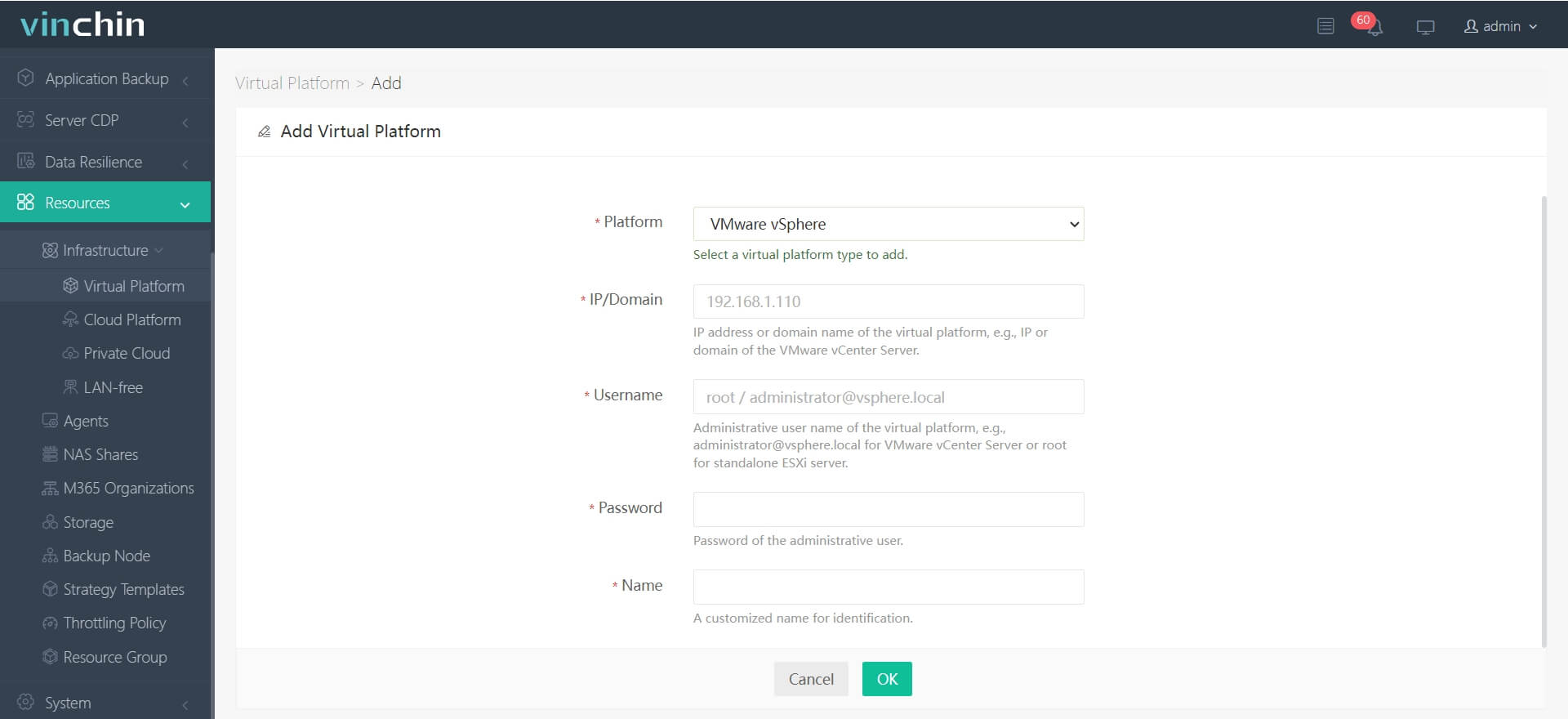
1. 添加 ESXi 主机及其凭据,以便无需代理即可备份其上的虚拟机
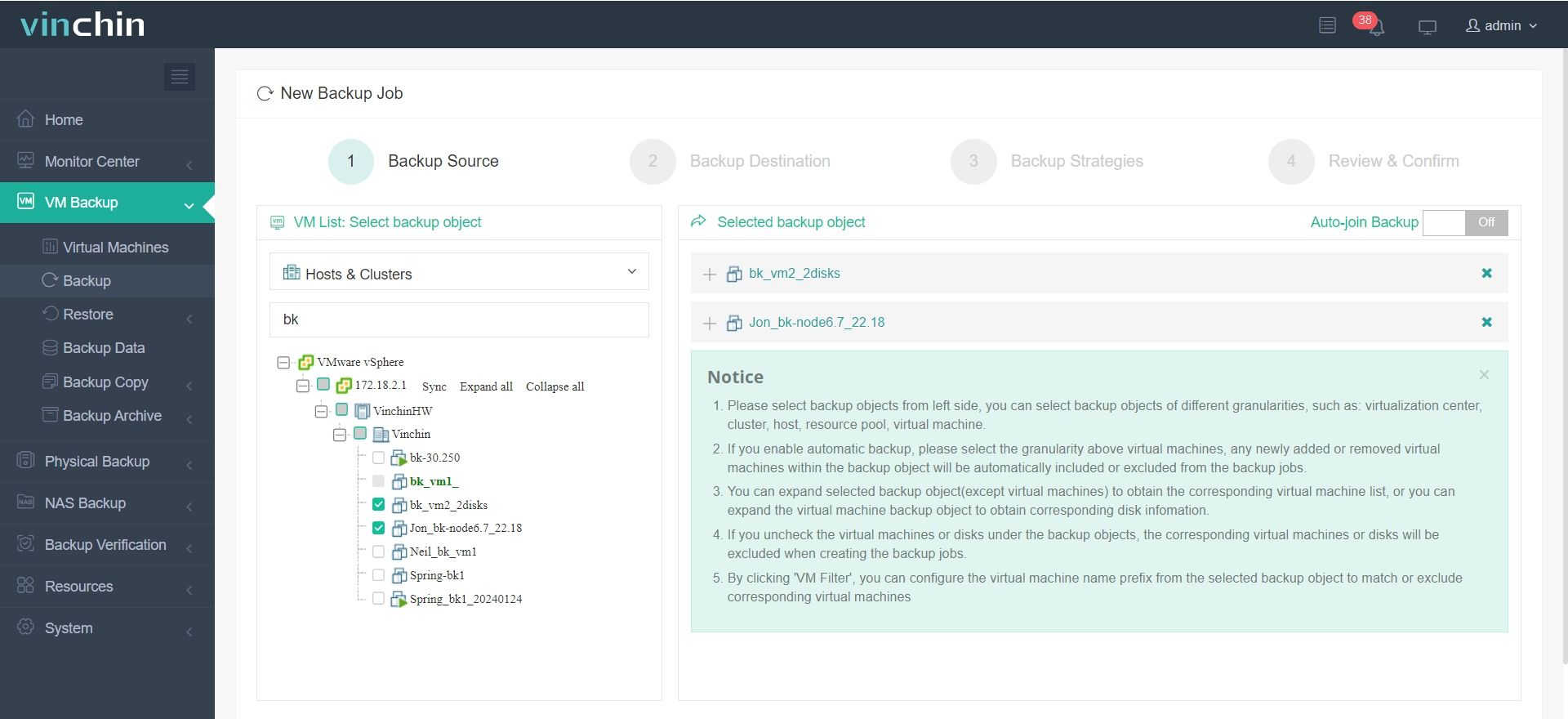
2. 选择 ESXi 主机,然后选择其上的虚拟机
3. 选择备份存储
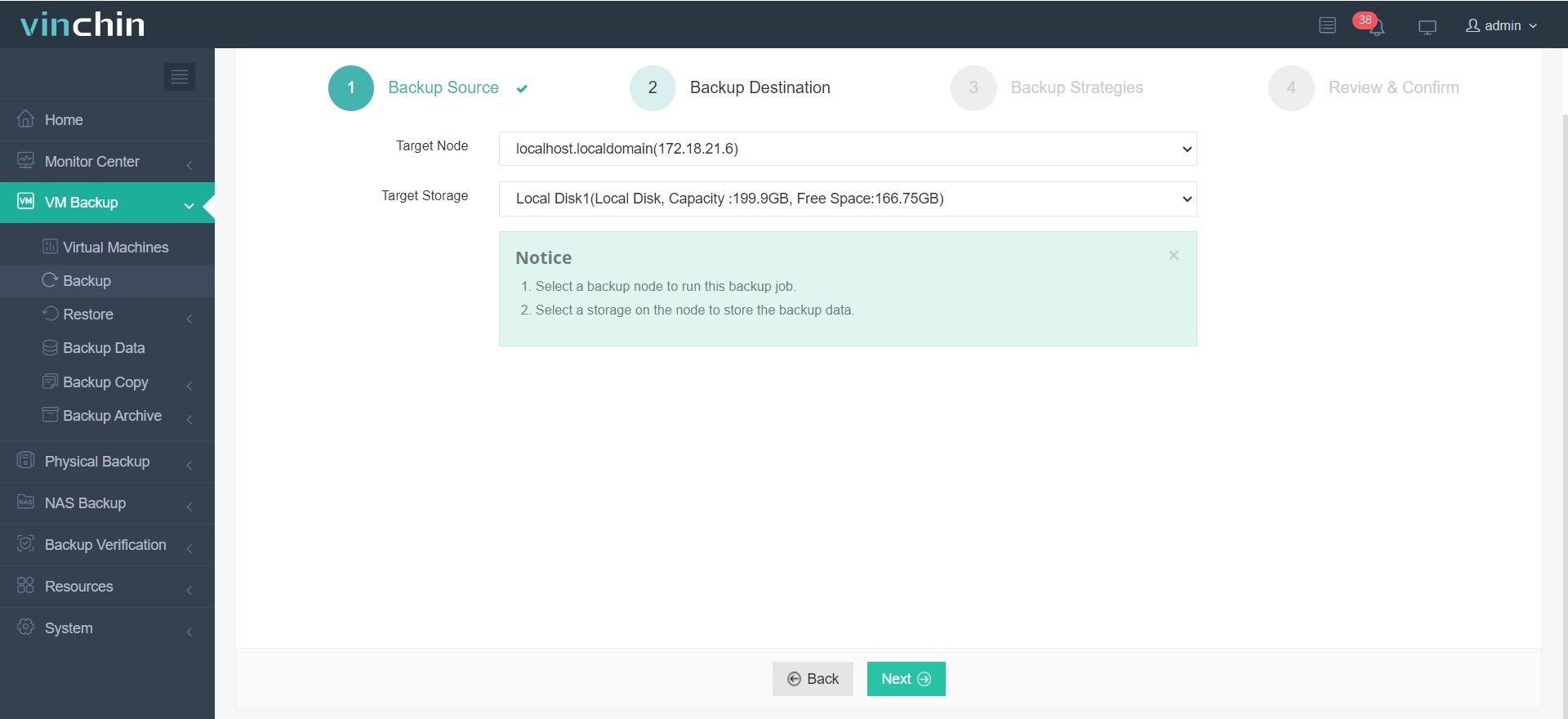
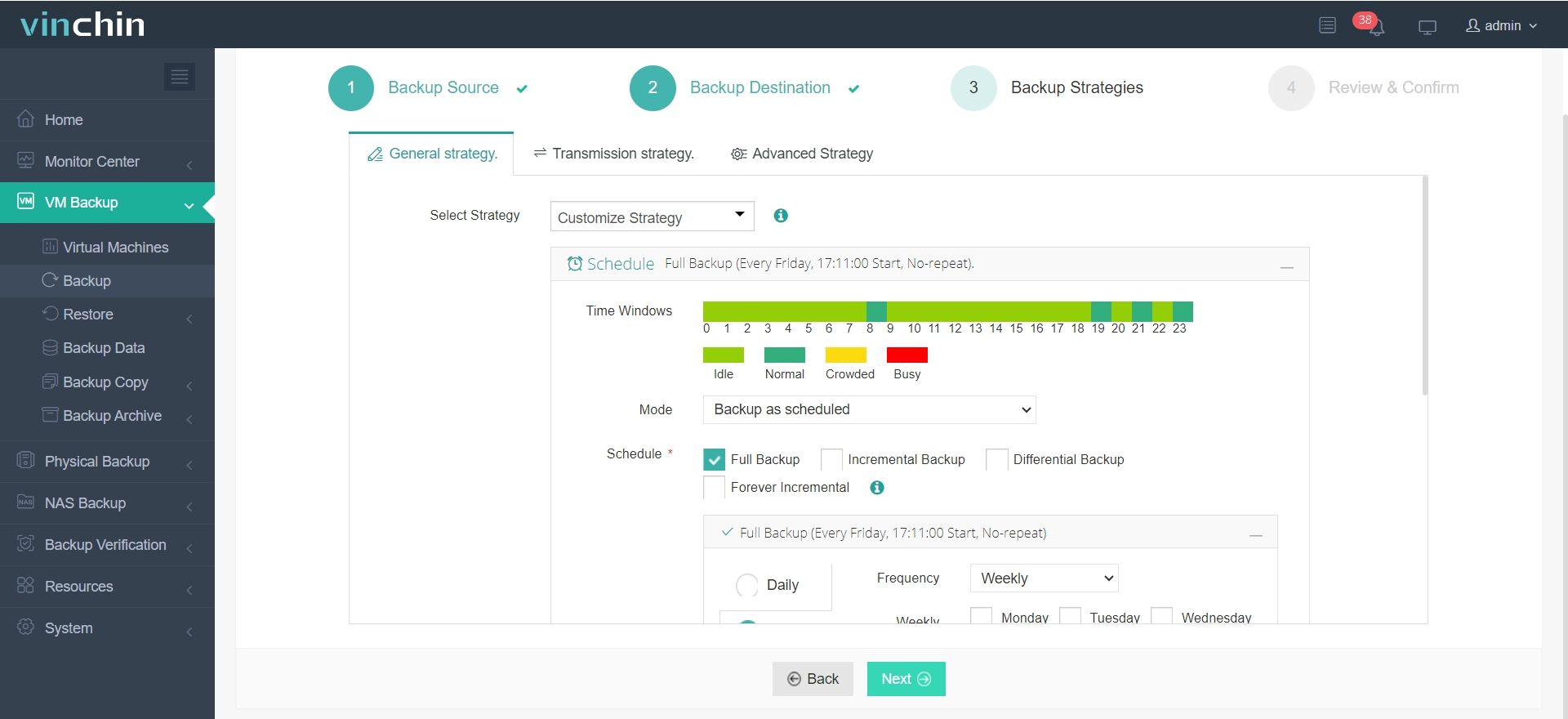
4. 选择备份策略。例如,您将采用增量备份、数据压缩、BitDetector 等技术来减小备份体积,采用数据加密保障数据安全,并通过免局域网传输(LAN-free transfer)降低对生产环境的影响。
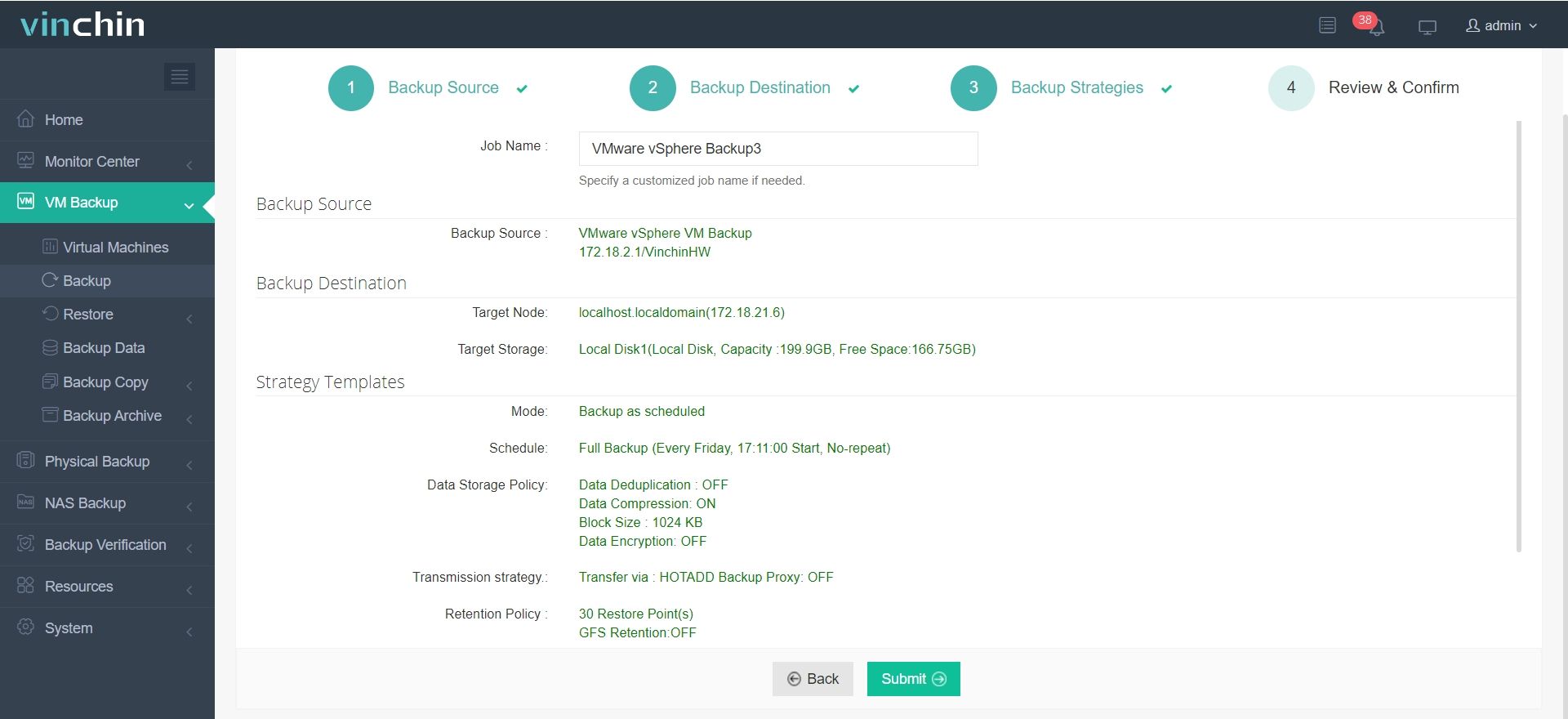
5. 仅需查看备份任务并提交
为便于灾难恢复,Vinchin 的即时恢复功能可在 15 秒内从备份中立即恢复故障虚拟机;为更好地管理多虚拟化平台环境,您可将 ESXi 虚拟机恢复至其他平台(如 XenServer 或 RHV)的主机上,反之亦然。
Vinchin 备份与恢复软件已获得数千家企业的青睐,您也可在此开启为期15天的全功能免费试用。此外,您可联系我们,提交您的具体需求,我们将为您量身定制解决方案。我们已与全球众多知名公司建立合作伙伴关系;如您希望开展本地化业务,可在此选择本地合作伙伴。

下载免费试用版
适用于多种数据备份
* 15天全功能免费安全下载
使用脚本备份 ESXi 虚拟机常见问题解答
问题1:运行 ESXi 备份脚本是否需要特殊权限?
A1:是的,您需要一个具有足够权限的 ESXi 账户,以访问和导出虚拟机。
问题2:该脚本能否同时备份多个虚拟机?
A2:是的,您可以在脚本中循环遍历虚拟机名称,从而自动备份多个虚拟机。
问题3:该脚本是否支持虚拟机快照?
A3:大多数脚本在导出虚拟机文件前使用快照来确保备份的一致性。
总结
ESXi 可将裸机物理服务器虚拟化,帮助企业更充分地利用其硬件资源。为备份服务器上的数据,企业可对服务器上的每个虚拟机(VM)进行备份;当某个虚拟机发生故障时,恢复该虚拟机不会影响其他虚拟机的正常运行。
除了手动从 vCenter 导出虚拟机外,还可以通过运行脚本来备份 ESXi 虚拟机,并提供更丰富的选项。
此外,还有一种比脚本更优的解决方案:Vinchin 备份与恢复是一款面向 VMware ESXi 虚拟机的专业企业级备份解决方案,可为虚拟环境提供更全面、更便捷的保护。立即体验免费试用!